Your TV guide
Browse categories, check programs and keep your favorite channels close.
 MADE FOR APPLE TV
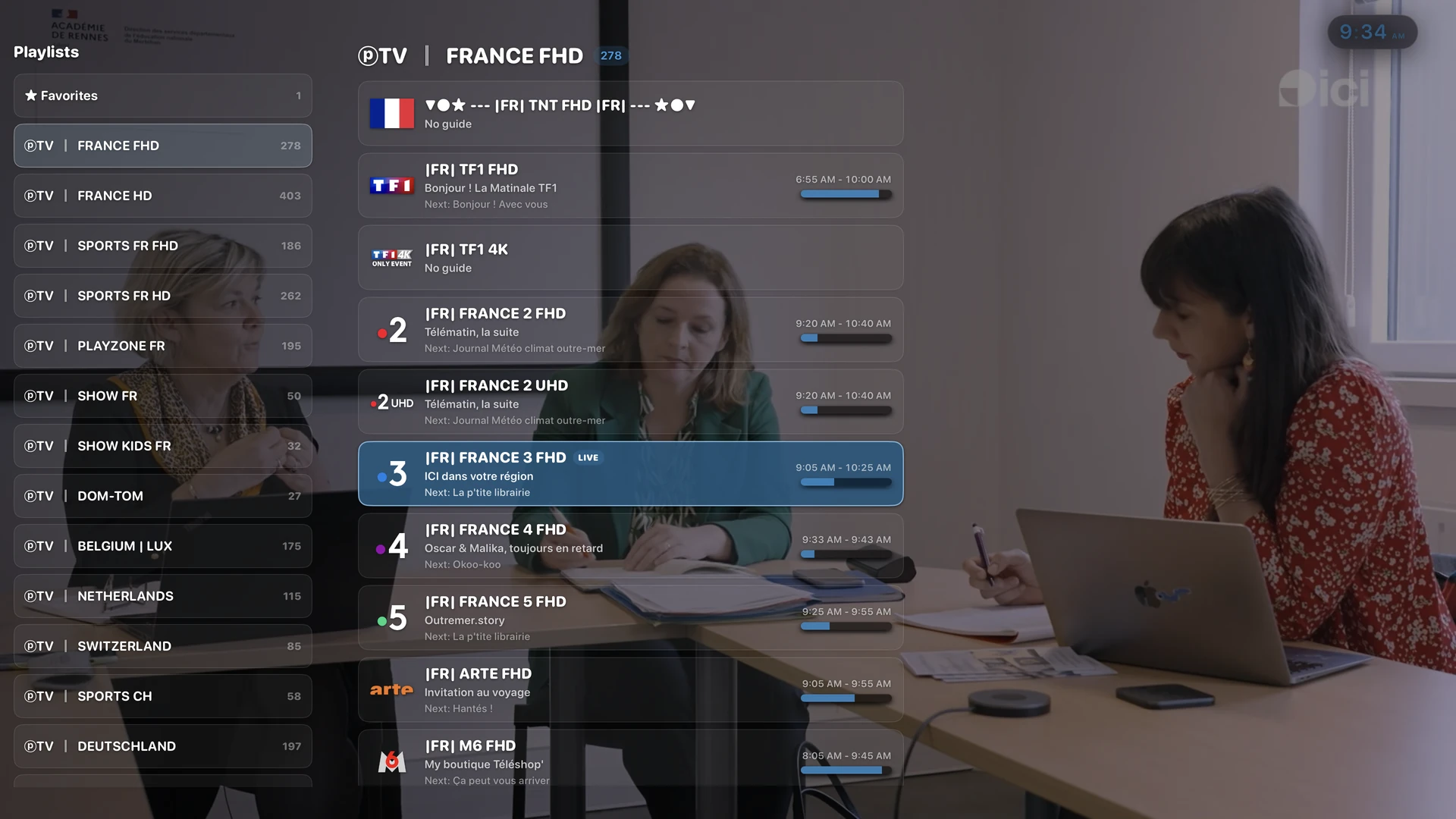
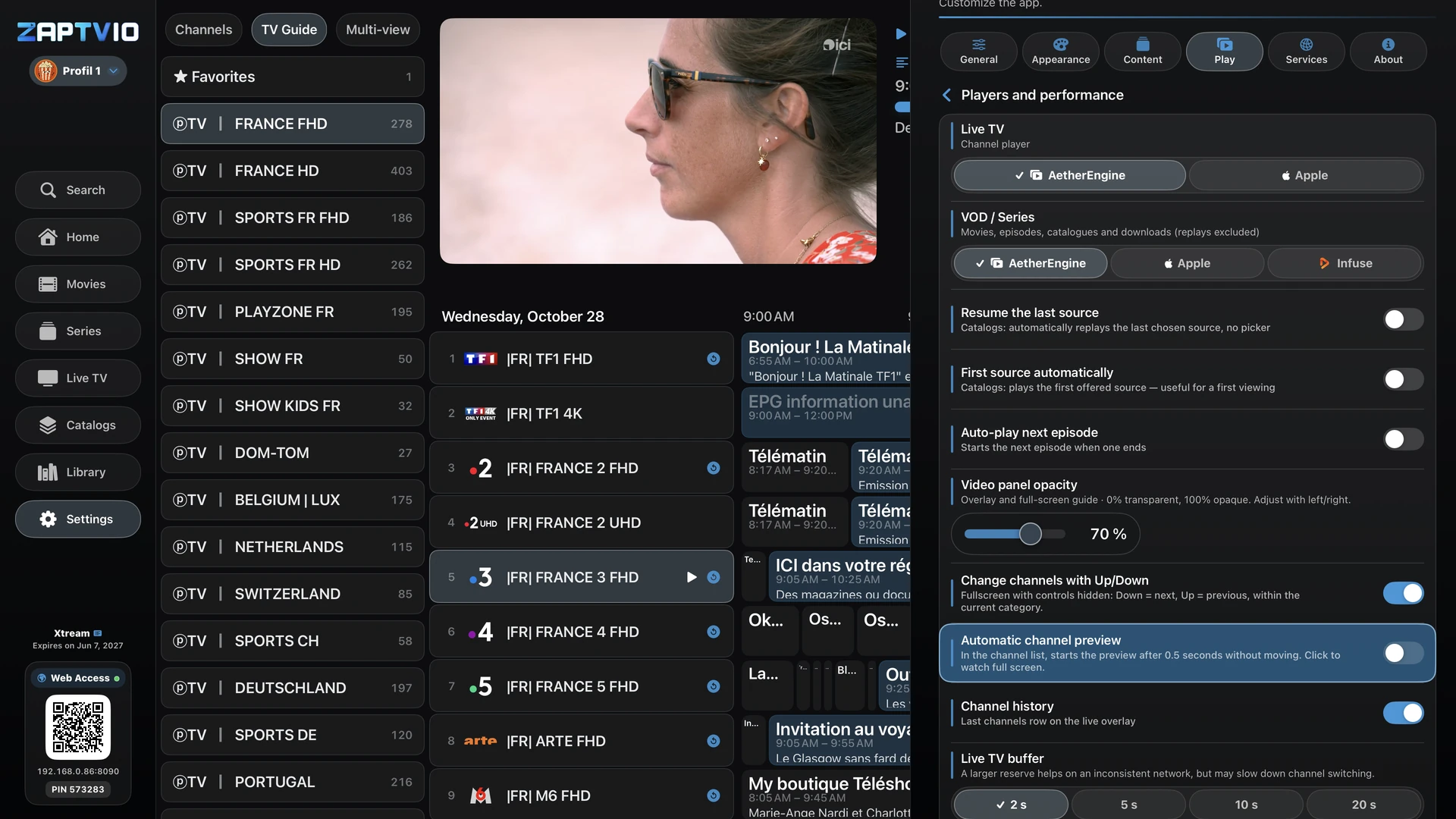
Move from the TV guide to live playback, find your favourites and adjust the player. Here are the features you will use every day.
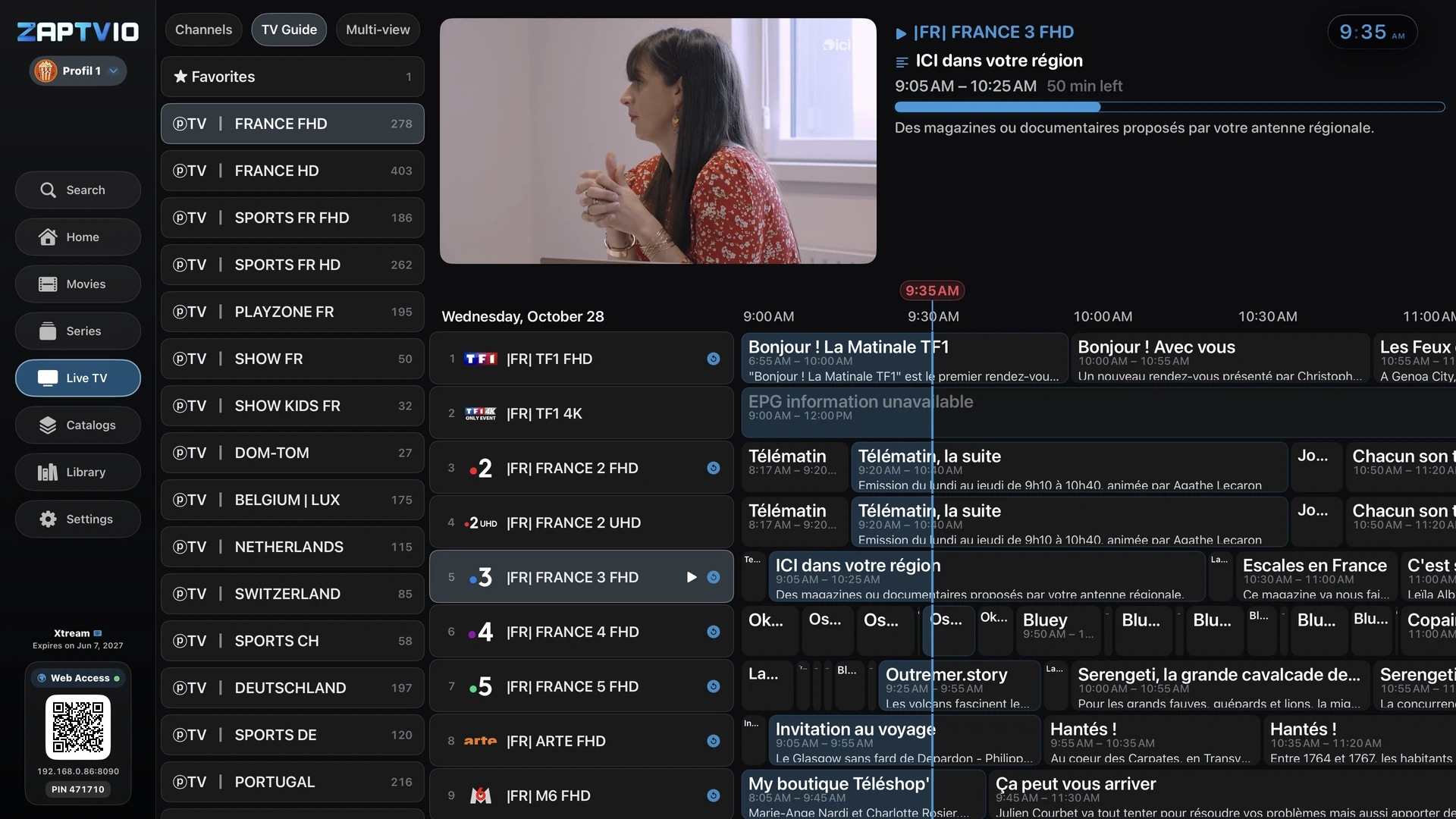
Browse categories, check programs and keep your favorite channels close.
Stay within your category. Optional up/down channel switching in fullscreen is available in Settings.
Multiview brings channels together when your subscription allows the required connections.
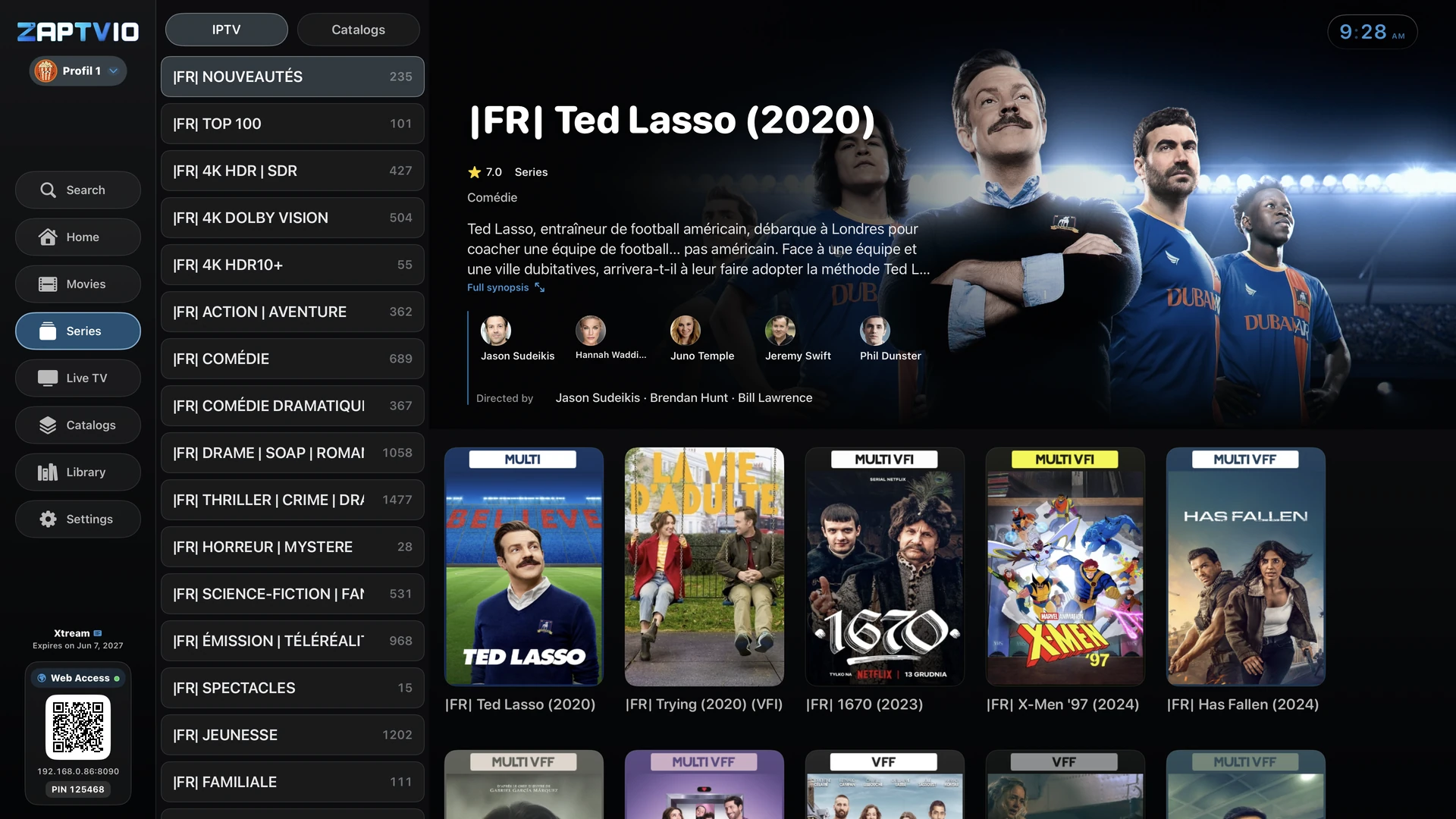
MOVIES & SERIES
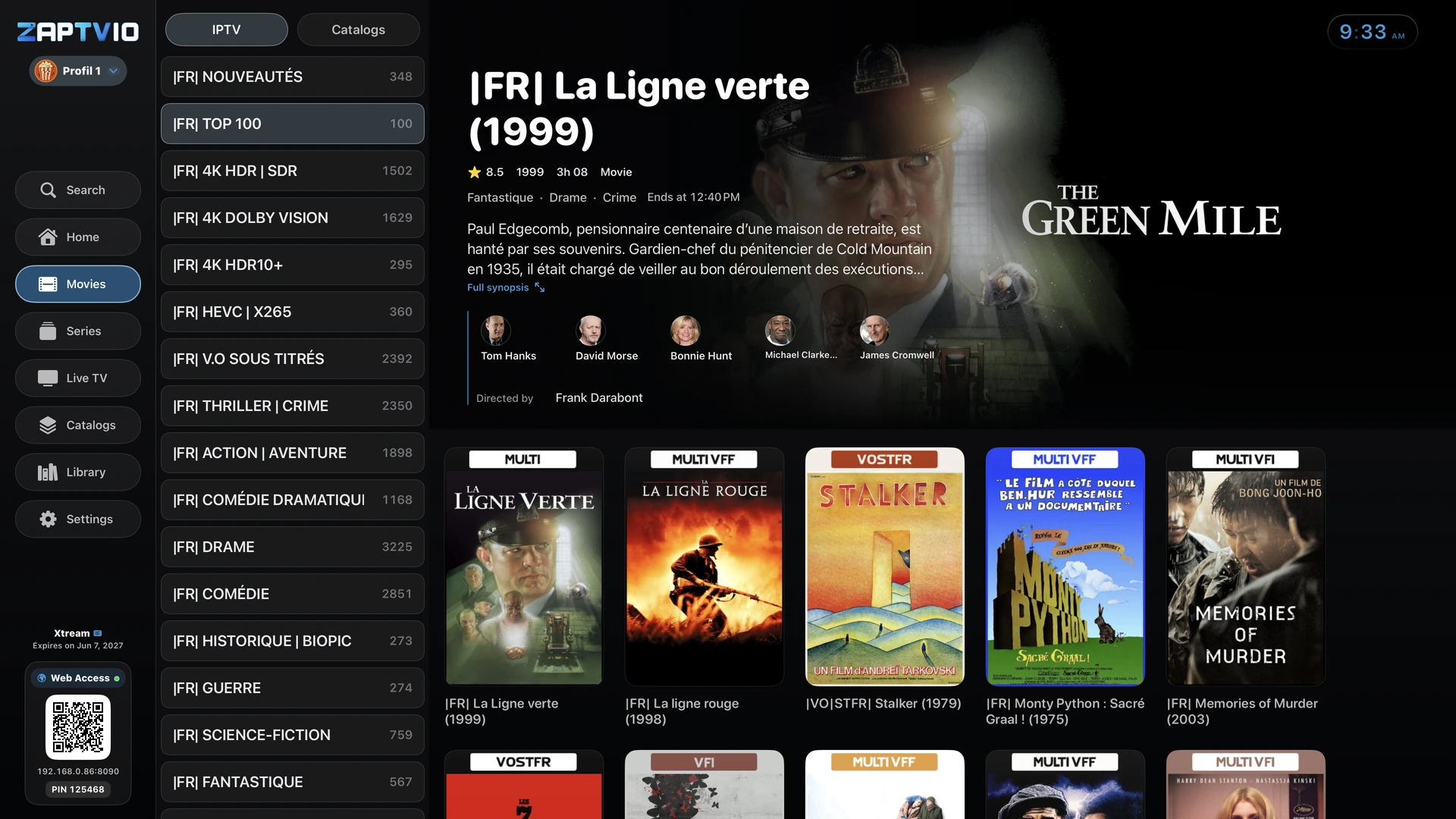
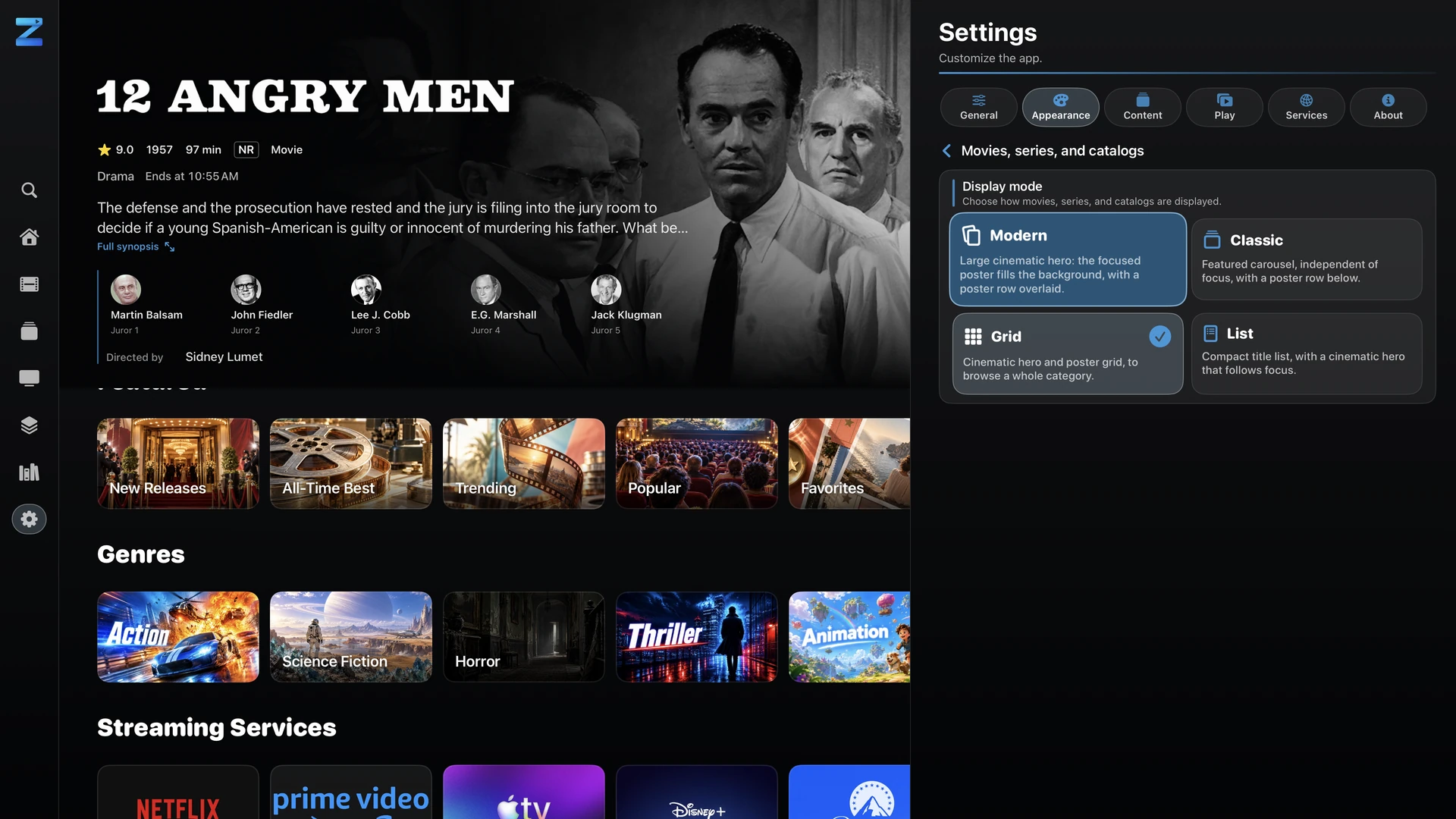
Browse categories, explore posters and read the synopsis before choosing. Your IPTV playlists and connected catalogues have their own tabs.
FAVORITES & PLAYLISTS
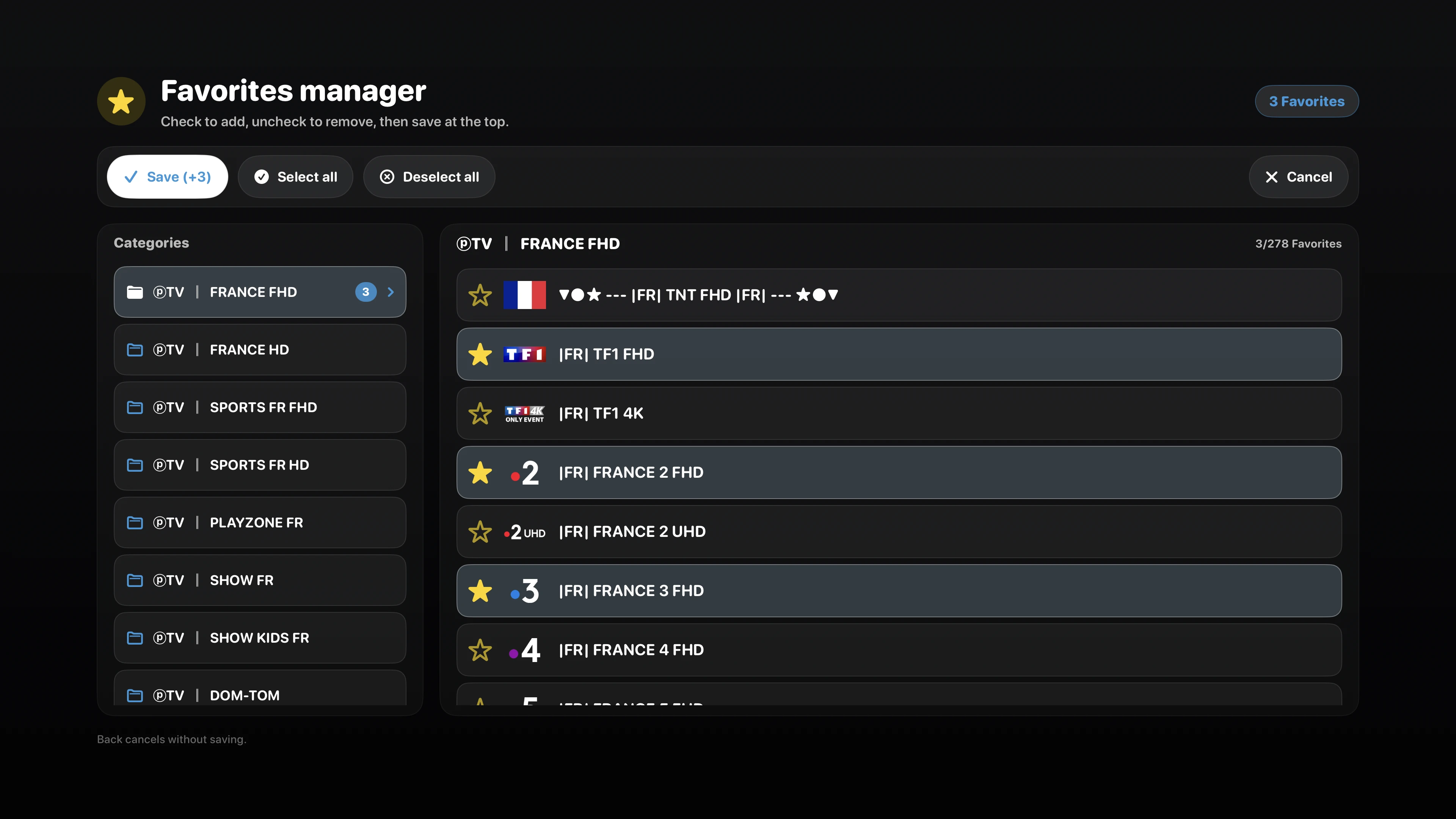
Keep the channels you care about and choose how sources appear in the app.
Add or remove individual channels for free. With the advanced Pro manager, select multiple channels or entire categories and apply your changes together.
Add playlists with Pro, give them a name and switch between them in the app. Your first playlist is included for free.
MULTIVIEW · PRO
Build your view and choose which channel you want to hear.
Add available live channels and move between windows with your remote. Smooth playback also depends on the streams and your Apple TV’s capabilities.
Each channel uses one connection. Four channels from the same provider require four allowed connections; ZAPTVIO cannot exceed your subscription’s limit.
THE PLAYER
Open the controls during a video to return to a recent channel, change the audio track or adjust subtitles.
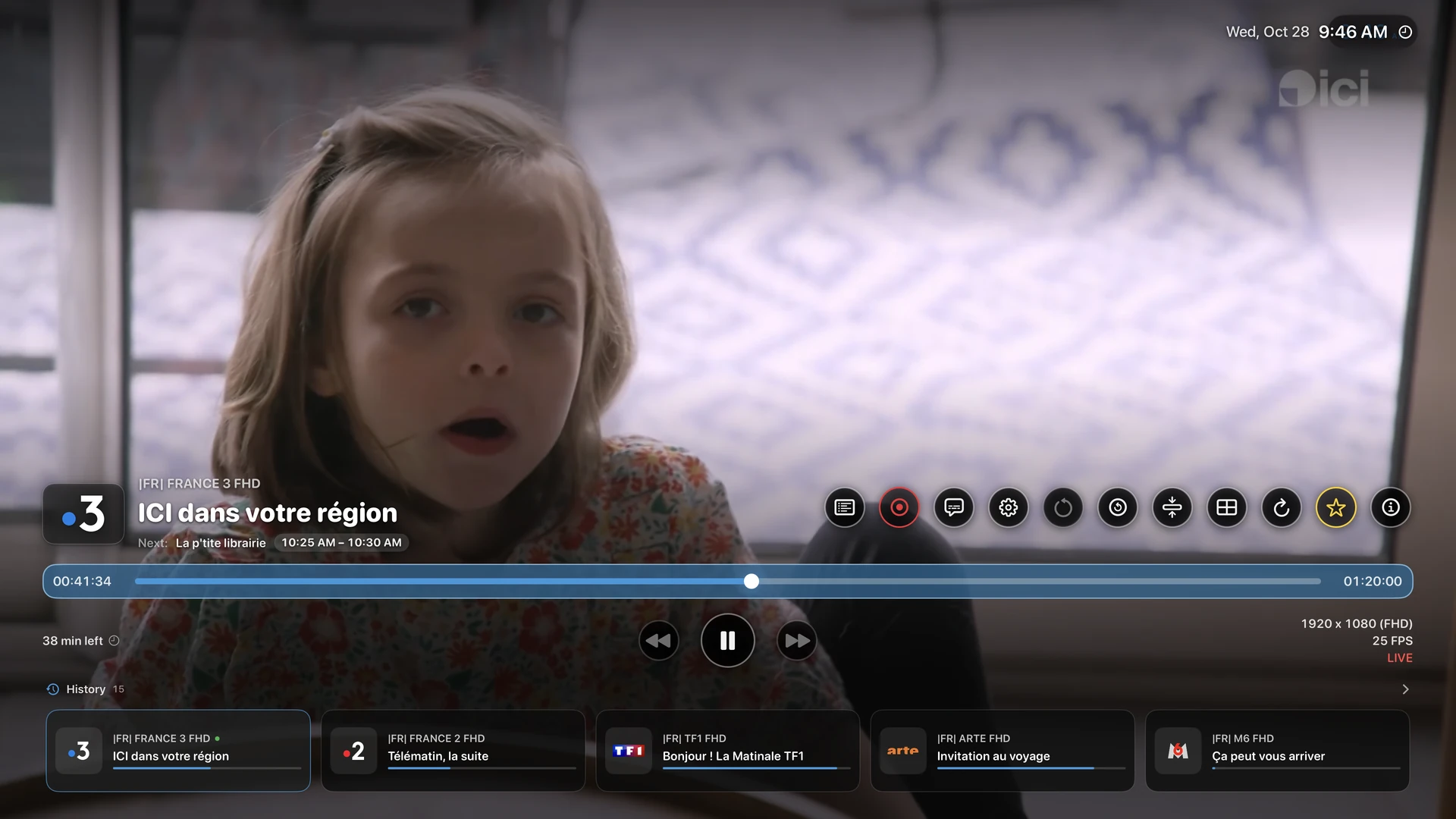
Return to a recent channel from the player controls without leaving full screen.
One panel for tracks, subtitle size and appearance. Available tracks depend on the video.
Open Settings from the player. The first Back press hides the controls while keeping fullscreen playback.
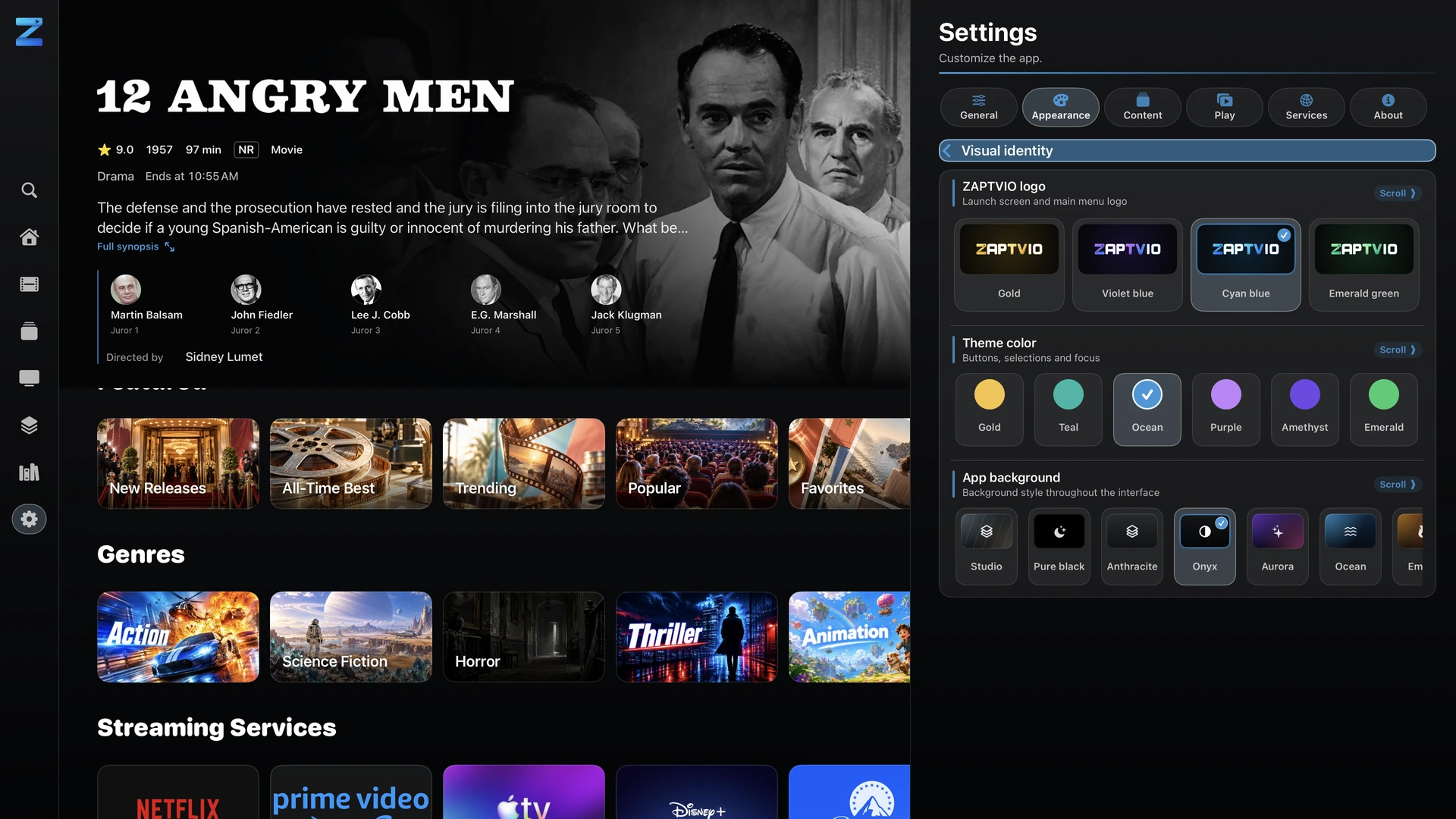
PERSONALISATION
Choose your menu layout, colours and text size. Adjust the transparency of player controls and the guide while watching.
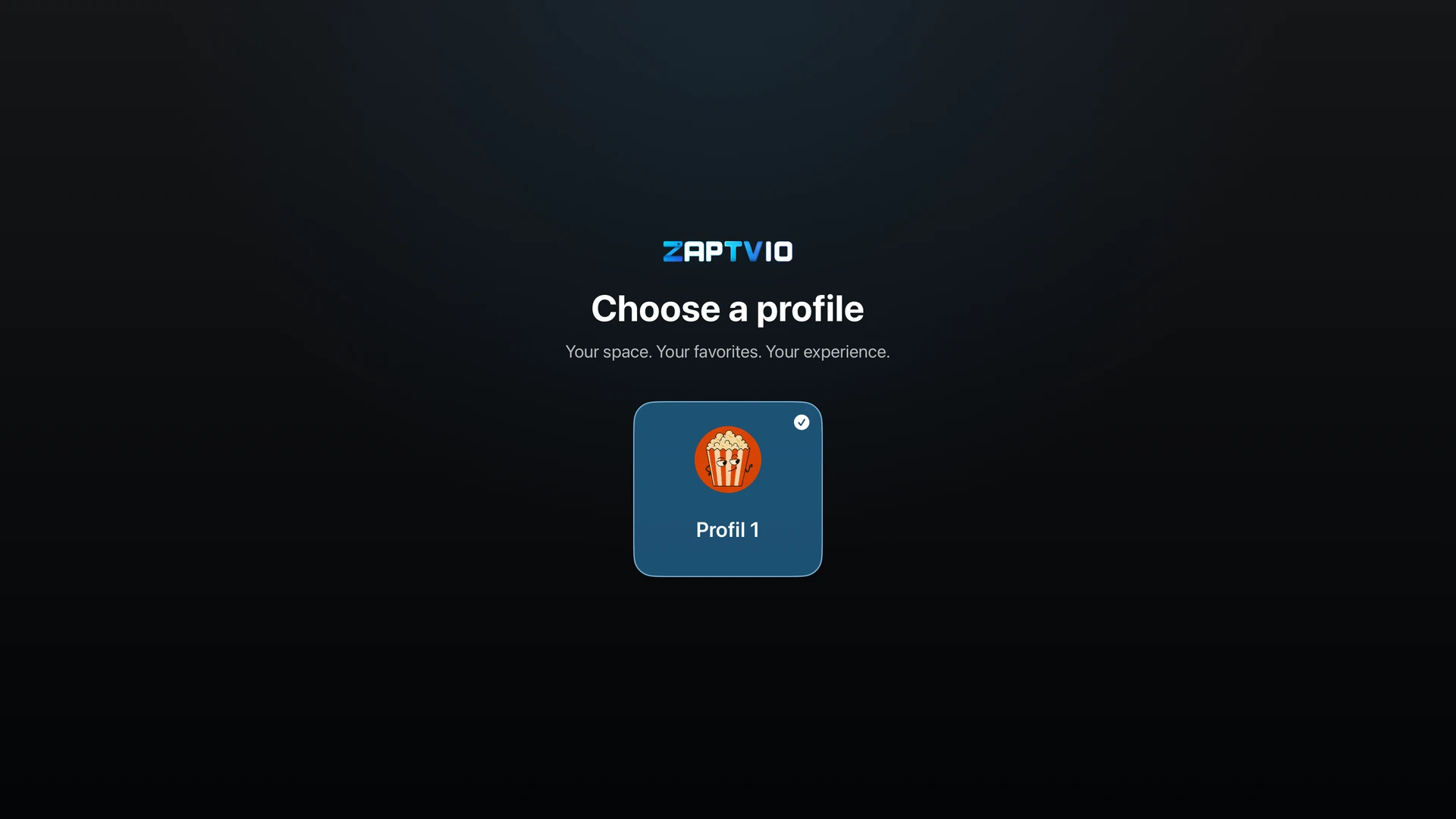
PROFILES AND PARENTAL CONTROLS
Choose a profile at launch or start with your preferred profile. Parental controls help protect access and sensitive settings.
Resume a video and choose whether the next episode starts automatically.
Sync supported data across your Apple TVs, with the option to turn iCloud off.
Keep your favorites and connect Trakt to track movies and series.
SETTINGS
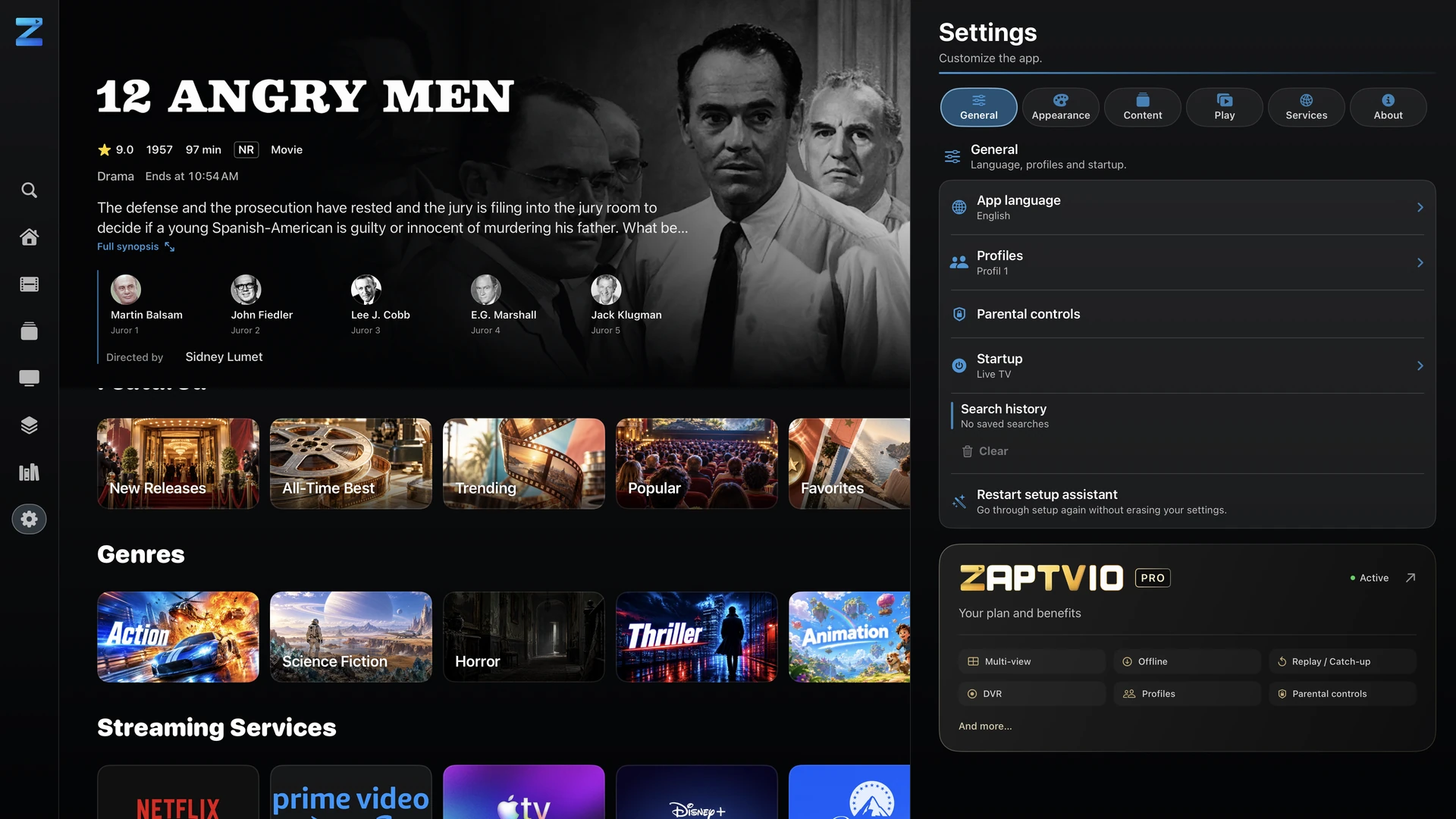
Choose the startup screen, player behaviour and menu appearance. You can change these preferences whenever you like.
Open your preferred section, select a default profile or display the profile picker. Starting on the last channel works with the Live TV startup section.
Choose the player and buffer, then adjust the available display options. Provider bitrate, your network and the incoming video still affect playback.
Set language preferences and subtitle appearance. Find useful shortcuts in the player’s Audio and subtitles panel.
Reorder sections and hide those you do not need. Adjust counters, font and interface size too.
Choose whether to show it on main screens and during video. Customise its position, then adjust overlay and guide opacity.
Each profile keeps its playlists, favourites and watch progress. Choose which access to protect with parental controls.
FROM FIRST LAUNCH TO THE NEXT EPISODE
The setup assistant guides you at the start. Shortcuts and watch progress help you from there.
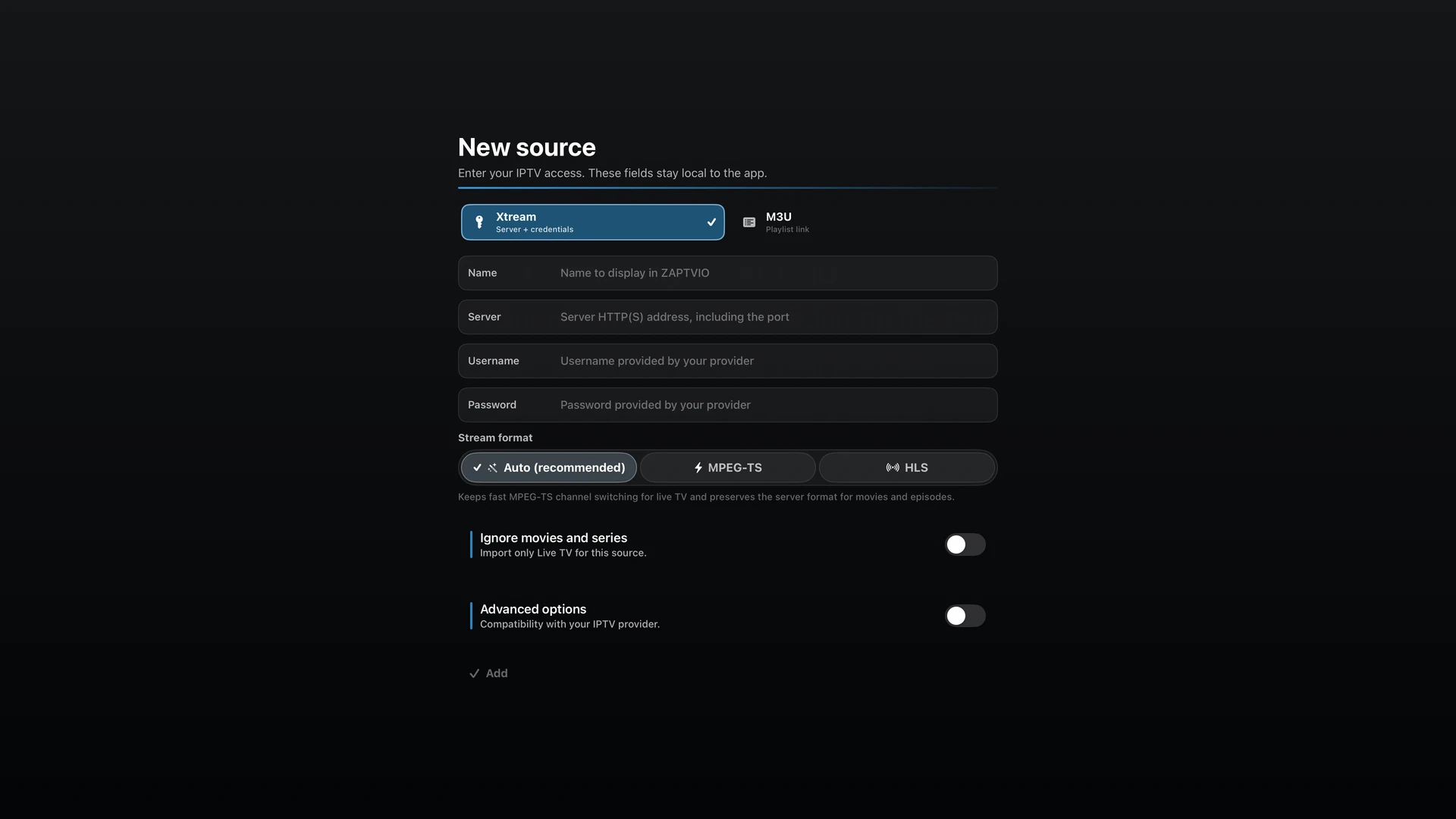
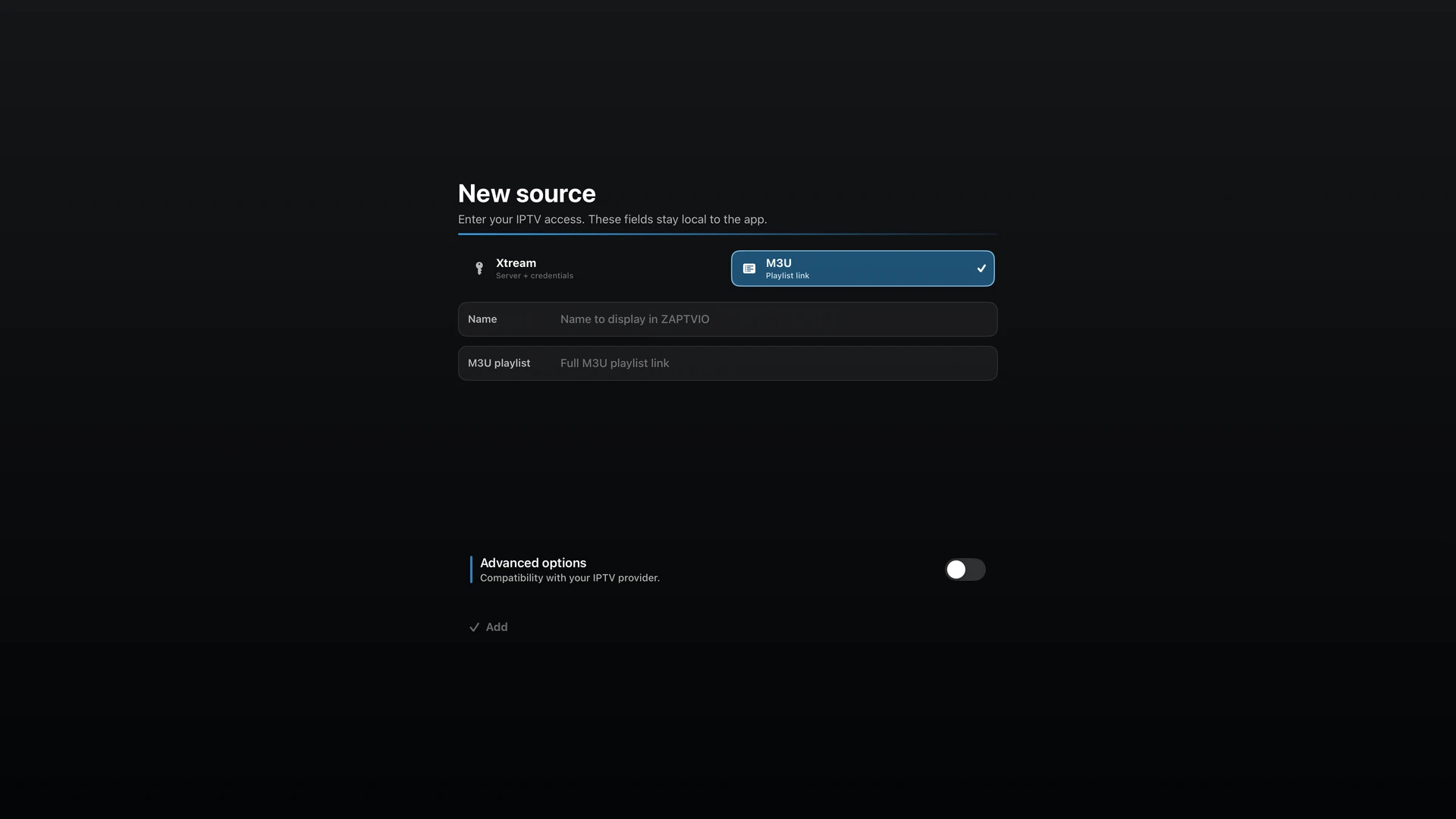
Confirm your profile, add Xtream or M3U, then Jellyfin if you wish. You can launch the assistant again from settings.
Find videos to continue and adjust which continue-watching categories appear. Automatic next episode remains an option you control.
Browse upcoming programmes in the guide and set a reminder when offered. To keep a programme, use replay or a DVR recording, depending on your source.