
 Playlists and Jellyfin
Add Xtream or M3U playlists and connect your Jellyfin library. Name your playlists, reorder them and choose which ones to show.
MANAGE ZAPTVIO
Add a playlist, organise channels or put together a movie collection in your browser. Entering addresses and organising content is easier with a phone or keyboard than with the remote.
GETTING CONNECTED
Open ZAPTVIO on Apple TV, then scan its QR code with your phone. The page opens in your browser, with nothing to install.
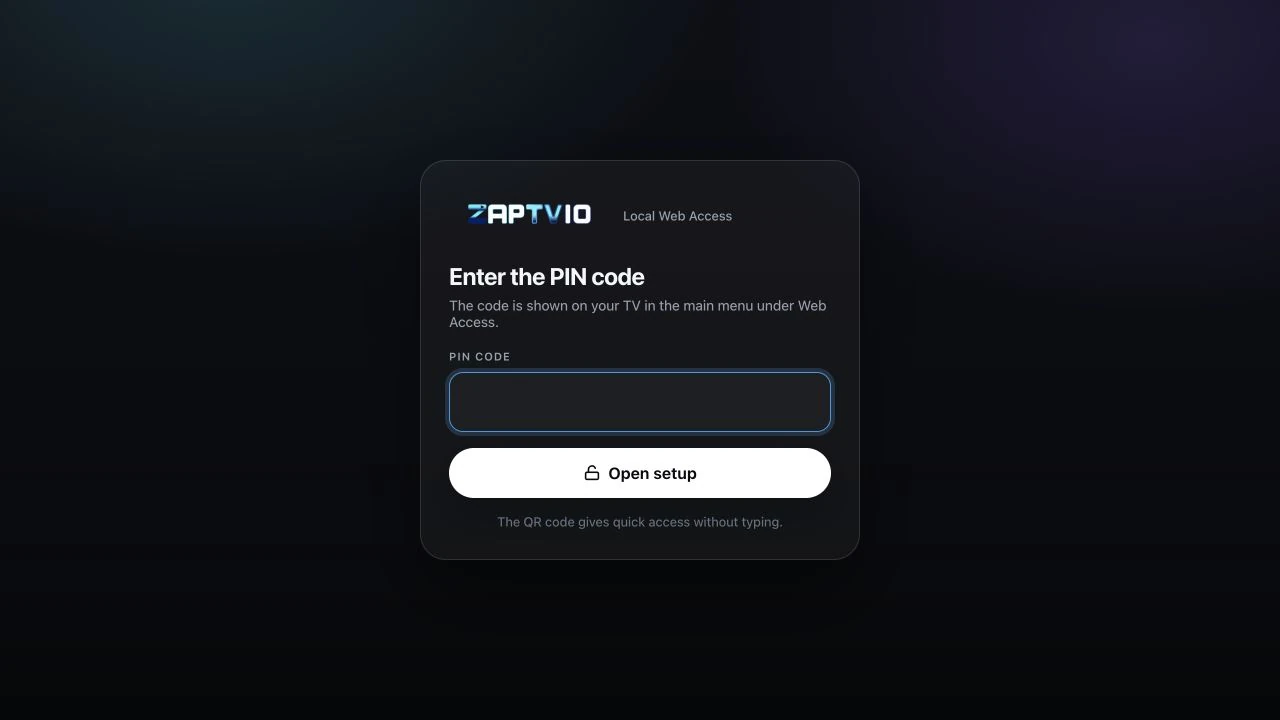
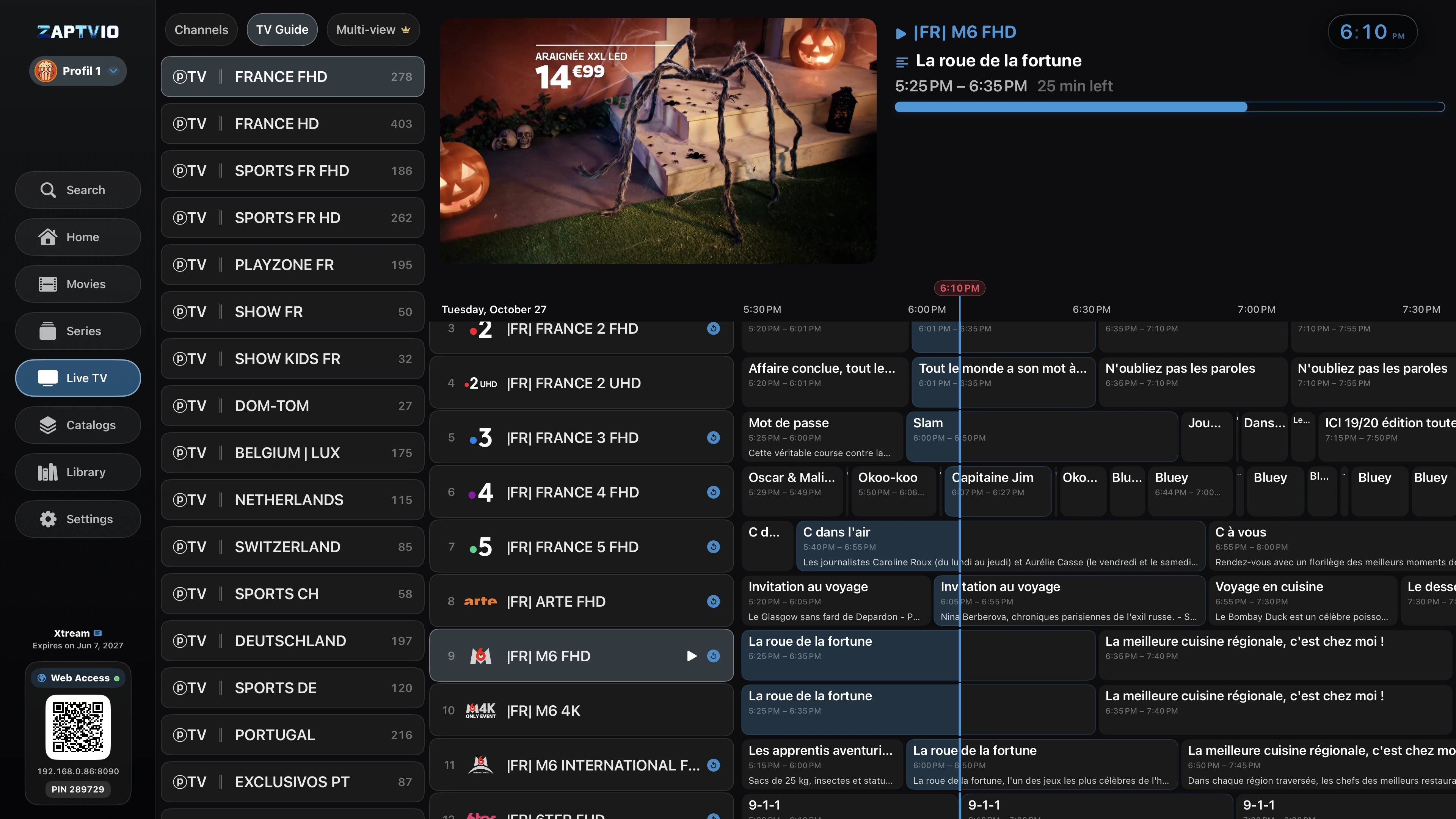
Find web access and its QR code in the app menu or Settings → Web. Keep ZAPTVIO open.
Scan the QR code with your phone. You can also enter the full local address, including its port, in a browser and use the code shown on the TV.
Check the active profile, open the section you need and save your changes. Sources and collections belong to the selected profile.
Keep your phone and Apple TV on the same network with ZAPTVIO open. An isolated guest network may prevent the connection.
WHAT YOU CAN DO
Changes apply to the profile shown at the top of the page. You will see them in ZAPTVIO on your Apple TV.
Playlists and JellyfinAdd Xtream or M3U playlists and connect your Jellyfin library. Name your playlists, reorder them and choose which ones to show.
Choose the playlist guide or add an external XMLTV source. Fine-tune a channel’s guide assignment from its context menu on Apple TV.
Reorder categories and channels, rename them and hide what you do not watch. Movie and series rows have their own organisation controls.
Create profiles and choose avatars. A dedicated area manages the PIN and restrictions, subject to authorised access.
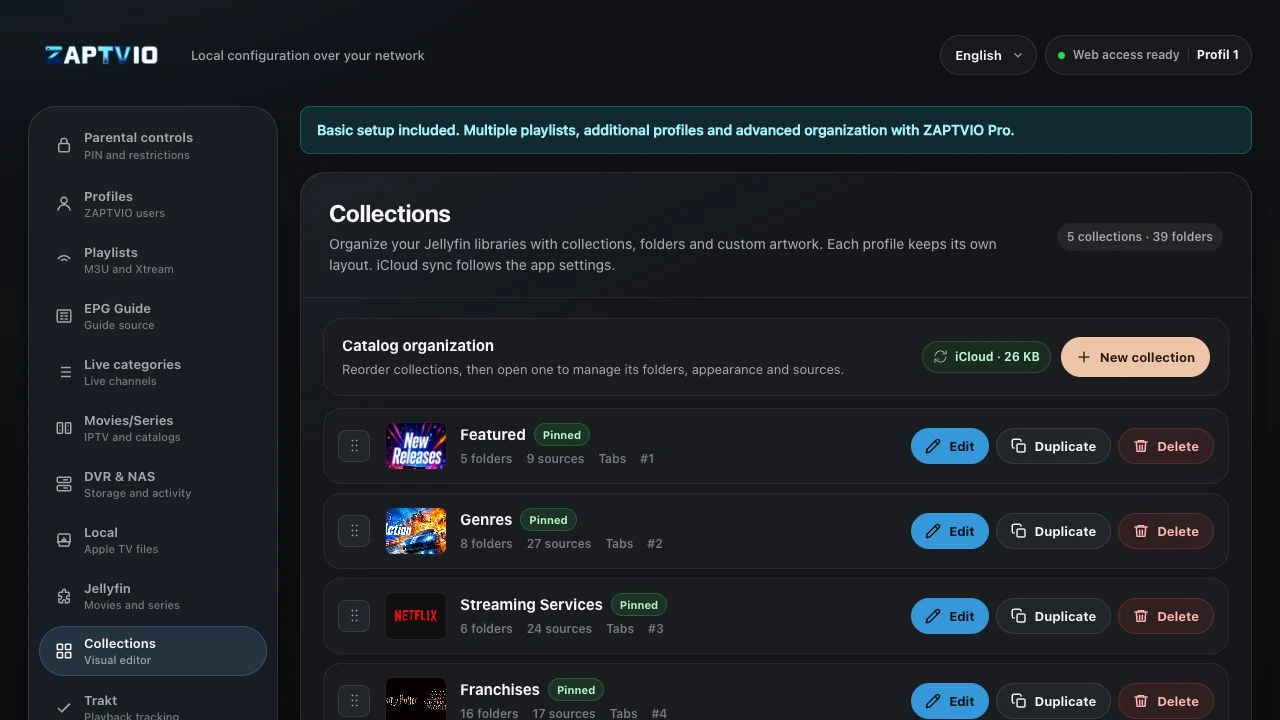
Create collections, add folders and link them to your Jellyfin catalogues. Customise covers, backdrops and the other artwork supported by the editor.
Find local files, set network destinations and follow transfers. Pair ZAPTVIO Server using its pairing link for autonomous DVR.
Connect Trakt tracking and manage the iCloud synchronisation supported by the app. These services use your own accounts.
Import your own configuration in the VPN section. ZAPTVIO does not provide a VPN account or VPN service.
Basic setup is included. Multiple playlists, additional profiles and some organisation features require ZAPTVIO Pro.
Compare included and Pro featuresIMPORTING COLLECTIONS
A collection groups folders shown in Catalogs. Each folder connects a presentation — title, cover and backdrop — to one or more catalogues available through Jellyfin.
Each folder → custom artwork + linked Jellyfin source
JSON is a text file format that describes this organisation. You do not need to write code: import a compatible file, check its source mappings, then refine the result in the visual editor.
Connect Jellyfin first.Add the server to ZAPTVIO first and make sure its libraries are accessible to your user.
Select the JSON file or paste its contents, then choose the destination Jellyfin server. Supported legacy collection files and ZAPTVIO version 2 exports are accepted, up to 1 MB.
Select the matching catalogue for each folder. Suggested mappings remain editable and existing genre filters are preserved.
The import adds collections and keeps your existing ones. If you confirm, a missing source can remain unassigned for later. Reorder folders and adjust their artwork in the editor.
Your collection and folder structure, along with compatible artwork. ZAPTVIO exports remove source connection identifiers; libraries are mapped again during import.
The file does not contain movies or create a library on Jellyfin. A collection named Netflix is a personal arrangement of catalogues: it does not connect a Netflix subscription.
APP SETTINGS AND RECORDINGS
The management page lets you configure ZAPTVIO while the app is open on Apple TV. ZAPTVIO Server is installed separately on a NAS or computer using Docker to handle recordings.
To record while Apple TV is off, use ZAPTVIO Server and the autonomous DVR engine. To write from Apple TV to a network share, the app must stay active.
Explore ZAPTVIO Server